Tips and Tricks Tutorials

Ultimate PowerShell Prompt Customization and Git Setup Guide

Matthew Hodgkins
1 min read
Share:

Do you spend hours a day in PowerShell? Switching back and forth between PowerShell windows getting you down? Have you ever wanted “Quake” mode for your terminal?
If we are going to spend so much time in PowerShell, we may as well make it pretty.
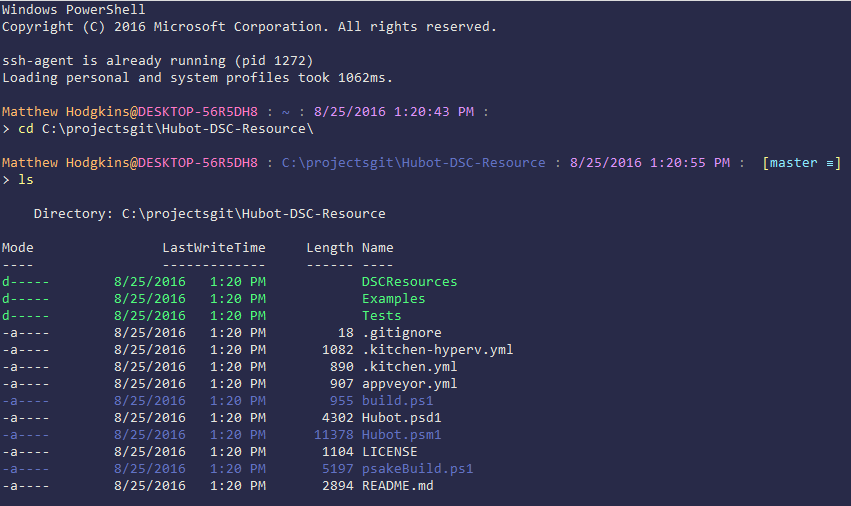
Check out the Ultimate PowerShell Prompt Customization and Git Setup Guide for how to:

  • Install and customize ConEmu
  • Enable Quake Mode for your terminal
  • Setup your PowerShell Profile
  • Install and use Posh-Git
  • Generate and use SSH Keys with GitHub
  • Squash Git commits

Related Articles

Dec 16, 2020

Media Sync: Organize Your Photos and Videos with PowerShell

Do you have photos and videos that you have taken over the years that are scattered all over the place? Do you want to have all your photos and videos organized? Do you want all your photos and videos to have a standardized naming scheme? If you answered YES to these questions, then this is the post for you. In this post, I will provide you with the PowerShell code and examples for how to use the Media Sync script. The Media Sync script utilizes the Shell.Application COM object to gather file metadata. Only files that have a picture or video metadata type will be processed. The script uses the date taken for pictures and the media created metadata fields to organize the photos and videos. If there is no date taken or media created available for a given file, the script will use the modify date instead. The script also ensures that you won’t have any duplicate files by checking the file hashes of the two files in question. If the script detects duplicate files, it will only keep one copy of the file. There are also tools included to help you cleanup unwanted files or folders, delete empty directories and find duplicate files. The script has a simple menu driven PowerShell GUI similar to what I did in a previous post . The Media Sync PowerShell script provides the following features:

Aug 31, 2020

NetNeighbor Watch: The PowerShell Alternative To Arpwatch

In this post, we are going to setup NetNeighbor Watch on a Raspberry Pi. NetNeighbor Watch can keep an eye on your network and send you an email when a new host is discovered. NetNeighbor Watch is done completely in PowerShell. The results are very similar to those of arpwatch. NetNeighbor Watch is for anyone that wants more visibility into the wireless or wired devices on their network. We will also setup a weekly email report with all of the known hosts on your network. In this post, I will walk you through the entire process of setting this up from scratch on a Raspberry Pi, lets get started!

Jul 27, 2020

Creating a PowerShell Module to Improve Your Code

Do you have PowerShell code that you reuse in your scripts over and over? Do you have server names hard coded in variables? Are you using a text file or CSV file to import server names? Do you find yourself only utilizing one server out of a cluster of servers to make your PowerShell commands? These are the questions I asked myself and the answer used to be YES. In this post, I will go over how you can store your infrastructure server information in a SQL database and call that data from a custom PowerShell module. By utilizing this method, you can expect the below benefits: