Microsoft Graph PowerShell Module: Getting Started Guide
Microsoft Graph PowerShell Module: Getting Started Guide
by Jeff Brown
Microsoft is retiring the Azure AD Graph API sometime after June 30, 2023 (announcement). This retirement includes the Azure AD PowerShell module. In its place, Microsoft has released the Microsoft Graph PowerShell module. The Microsoft Graph PowerShell module is the next-generation way of managing Microsoft cloud services using PowerShell. If you have used MSOnline or Azure AD PowerShell in the past, you’ll need to read on to learn about this new module.
In this tutorial, you will learn about the Microsoft Graph module, including how to authenticate, find cmdlet permissions, and upgrade from Azure AD PowerShell. To follow along with this tutorial, you will need either Windows PowerShell 5.1 or PowerShell 7. This tutorial uses PowerShell version 7.3.4.
What is Microsoft Graph?
Microsoft Graph is the entry point to all things Microsoft 365 and Azure. Microsoft Graph exposes REST APIs and client libraries so you can access data and manage resources in Microsoft 365, Enterprise Mobility + Security, and Dynamics 365. The Microsoft Graph API has a single endpoint (https://graph.microsoft.com) that enables you to access data and build apps supporting any business need.
Some common uses for accessing Microsoft Graph include:
- Managing user accounts and licenses
- Viewing and accessing files in OneDrive
- Reading Outlook e-mail and calendar events
- Managing Intune devices
If you are new to REST APIs or just the Microsoft Graph, you can use Graph Explorer to try out different commands, including viewing your profile, managing groups, or working with Microsoft Teams. You can explore the sample tenant data or sign in to your Microsoft 365 account to view personalized responses.
Try out the Graph Explorer:
- Navigate to https://developer.microsoft.com/graph/graph-explorer.
- Select a pre-built query from the left menu, such as GET my profile.
- Next, review the generated URL endpoint (https://graph.microsoft.com/v1.0/me).
- Select the Run query button, then view the results under Response preview. You can make HTTP requests to Microsoft Graph to view and manage data like this!

Microsoft Graph PowerShell Module
Cloud administrators have used the MSOnline and Azure AD PowerShell modules for managing Azure AD for years. The retirement of the Azure AD Graph API means Microsoft is also retiring those modules. The Microsoft Graph PowerShell module replaces the Azure AD PowerShell and MSOnline modules. The module is an API wrapper for accessing Microsoft Graph. The module contains cmdlets that interact with the Graph API using native PowerShell syntax. You don’t have to worry about generating URLs or crafting search syntax; that is all included in the PowerShell commands.
Some features and benefits of the new modules are:
- Besides managing Azure AD, you can access other APIs, such as SharePoint, Exchange, Teams, and Outlook using a single endpoint.
- Microsoft Graph PowerShell supports both Windows PowerShell 5.1 and PowerShell 7 (the Azure AD PowerShell module only supports Windows PowerShell 5.1).
- The module works on multiple platforms, including Windows, macOS, and Linux.
- Modern authentication support.
- Open source with regular updates to support the latest Graph API changes.
Installation
To install the module on PowerShell 7, use the Install-Modulecommand, specifying theNameof the module (Microsoft.Graph), and select aScopefor installation (CurrentUserorAllUsers).
`powershell
Install for current user
Install-Module -Name Microsoft.Graph -Scope CurrentUser
Install for all users
Install-Module -Name Microsoft.Graph -Scope AllUsers `### API Version
By default, the module uses the Microsoft Graph REST API v1.0. You can also experiment with commands in the beta version by switching your API version. Use Select-MgProfilewith theNameparameter to target theBetaversion. If you want to switch batch to using v1.0 API commands, usev1.0for theNameparameter.
`powershell
Switch to Beta
Select-MgProfile -Name Beta
Switch to v1.0
Select-MgProfile -Name v1.0 `## Microsoft Graph PowerShell Authentication Types
The Graph PowerShell module supports two types of authentication: delegated and app-only. The following sections will explain the differences, and the remainder of this tutorial will focus on using delegated access.
Delegated access
Delegated access is when an application acts on behalf of a signed-in user. For example, you sign into an application, and the application calls the Microsoft Graph on your behalf. Both you and the application must be authorized to make requests to Microsoft Graph.
Delegated access requires delegated permissions, also known as scopes. Scopes represent the operations the application can perform on behalf of a user. You will see how scopes come into play later in this tutorial when you connect to the Microsoft Graph using PowerShell.
App-only access
App-only access involves an application or service accessing Microsoft Graph without a signed-in user account. The application obtains an access token that includes information on what the application is authorized to access in the Microsoft Graph. An application calls the Microsoft Graph when assigned application permissions (or app roles) or when the application is an owner of the resources it needs to manage.
To use app-only access:
- Register an app with Azure AD.
- Configure applicable Microsoft Graph permissions for the app.
- Have an administrator grant the permissions.
- Code the app to request an access token.
- Use the access token and HTTP requests to call Microsoft Graph.
For more information on using app-only access, check out the Microsoft Learn article Get access without a user.
Authenticating to Microsoft Graph
The remainder of this tutorial focuses on connecting to Microsoft Graph using delegated access. There are three ways to connect with delegated access using the Connect-MgGraphcommand.
- Interactive authentication: A browser opens to authenticate to your tenant.
powershell Connect-MgGraph * Device authentication: Navigate to a URL and enter a device code to authenticate.
powershell Connect-MgGraph -UseDeviceAuthentication * Access token: Authenticate using your own access token.
powershell Connect-MgGraph -AccessToken $AccessToken After authentication, if this is your first time connecting to Microsoft Graph using PowerShell, a permission request window will appear. This prompt authorizes the Microsoft Graph Command Line Tools to act on your behalf. If you want to consent on behalf of your organization, check the box; otherwise, leave it unchecked and click Accept.
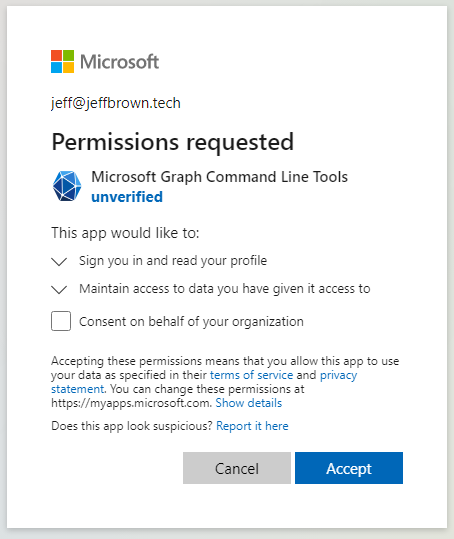
Once connected, PowerShell displays a Welcome to Microsoft Graph! message.

Understanding scopes
Once connected, try running any command, such as Get-MgUser. This command should display user accounts in your tenant. However, you might be presented with an error message about insufficient privileges to complete the operation, like this:

When connecting to Microsoft Graph using interactive or device code authentication, you must specify the permission scopes required during your session. Remember from earlier that scopes are the permissions the application performs on your behalf. With the Microsoft Graph PowerShell SDK, you specify what permissions you are granting it to carry out the commands.
You can view existing scopes for a session using Get-MgContextand viewing theScopesproperty. In this example, the current context includesopenid, profile, User.Read, email.

Finding command scopes
Now that you know you need to specify scopes in your connection, how do you find the necessary scopes for each command? You use the Find-MgGraphCommandand specify theCommandparameter. Optionally, you can specify whichApiVersionyou are using (currentlyv1.0orbeta).
To view permissions more easily, pipe the results and expand just the Permissionsproperty. Next, select just unique values for the permissionNameproperty. Here are the command and results for finding permissions forGet-MgUser.
powershell Find-MgGraphCommand -Command "Get-MgUser" | Select-Object -ExpandProperty Permissions | Select-Object -Unique Name 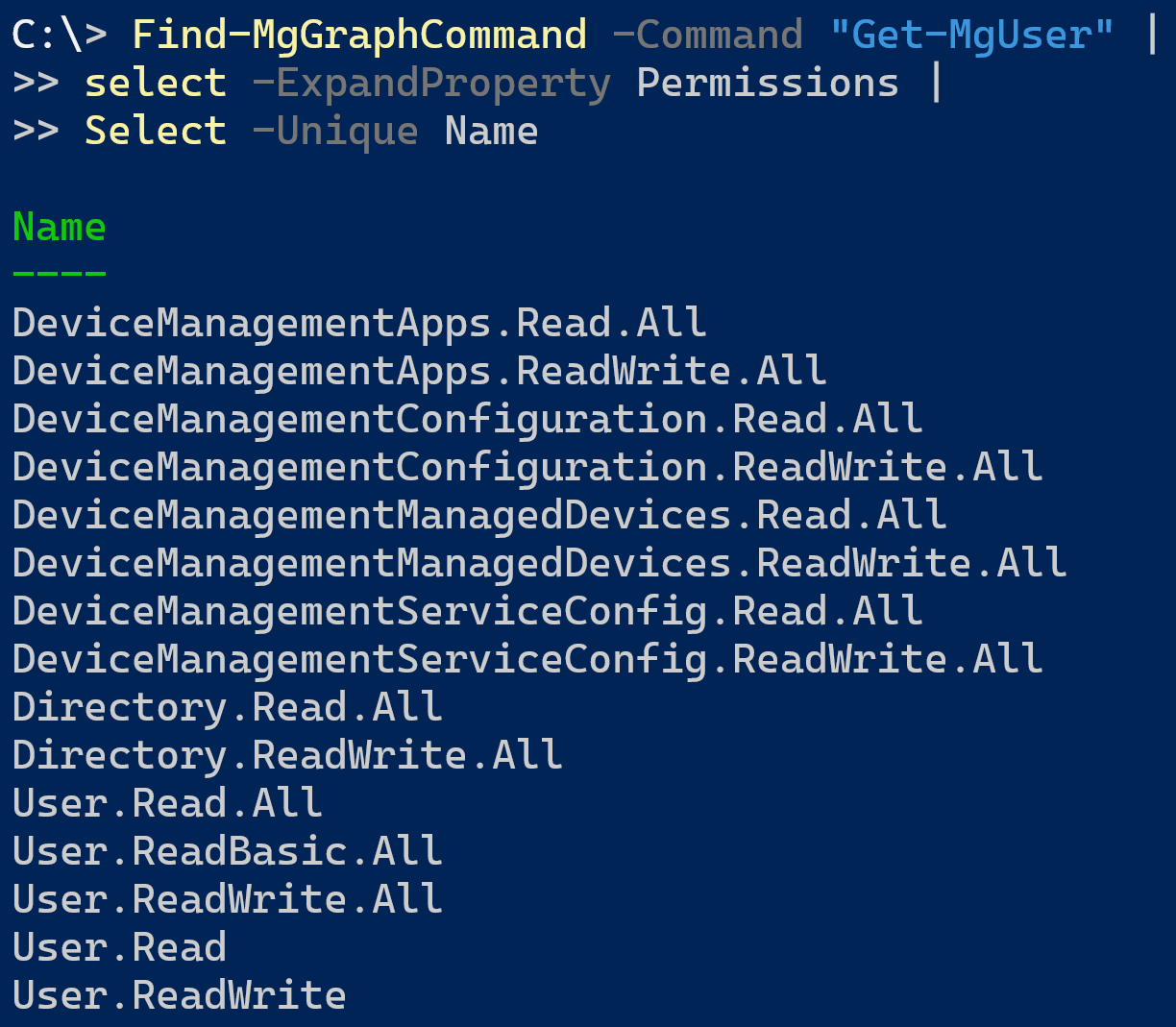
Many permissions allow you to list users; however, you don’t have to specify every single one in your connect command. Choose one that makes the most sense. In this example, since you are getting information about user accounts, the User.Read.Allscope seems most appropriate.
Adding scopes to the connection
Re-run the Connect-MgGraphcommand again, this time using theScopesparameter with a value ofUser.Read.All. You will repeat the authentication and permission process from earlier.
powershell Connect-MgGraph -Scopes 'User.Read.All' Re-running the Get-MgUsershould now return a list of user accounts in your environment. This command works because you allowed the application to use theUser.Read.Allpermission on your behalf.
As a bonus, re-run the Get-MgContextcommand and view the additional scope (hint: you may need to expand theScopesproperty to view all the entries). You should see theUser.Read.Allscope added to your context.
As a challenge, say you want to update a user’s display name using the Update-MgUsercommand. Use the previous steps to find and add the additional permission scopes to your connection.
To view all available application and delegated permissions, check out the Microsoft Graph permissions reference article at Microsoft Learn.
Disconnecting from Microsoft Graph
Use the Disconnect-MgGraphcommand to disconnect from Microsoft Graph. Do note thatDisconnect-MgGraphdoes not remove your scopes. The scopes added are included in your connection the next time you runConnect-MgGraphso you don’t have to specify them again.
Upgrade from Azure AD PowerShell
As previously mentioned, Microsoft is retiring the Azure AD, Azure AD Preview, and MSOnline PowerShell modules. The new Microsoft Graph PowerShell module replaces these modules for managing Azure AD and provides cmdlets for interacting with other Microsoft services.
If you have existing scripts, functions, or modules using the retiring modules, you need to review and document the commands and parameters you are using in them. Start with simpler scripts with lower business impact while developing a migration process. You will also need to determine if you need delegated or app-only access for authentication.
Microsoft provides documentation that maps cmdlets from Azure AD and MSOnline modules to the new Microsoft Graph module. Review the article at Microsoft Learn titled Find Azure AD and MSOnline cmdlets in Microsoft Graph PowerShell for more information.
Summary
The Microsoft Graph PowerShell module is a powerful tool for managing not only Azure AD but many other Microsoft cloud services. You learned about installing the new module and the different authentication methods. Connecting to Microsoft Graph using PowerShell also requires defining your scoped permissions, and you learned how to find those scopes.
Additional reading about working with the new Microsoft Graph PowerShell module is below. Good luck and happy scripting!
Microsoft Learn | Authentication module cmdlets in Microsoft Graph PowerShell
Microsoft Learn | Upgrade from Azure AD PowerShell to Microsoft Graph PowerShell
Related Articles
PowerShell Escape Room
PowerShell Escape Room by Michiel Hamers by Michiel Hamers https://about.me/michielhamers/ Why on earth you want to create an Escape Room with PowerShell as backend? I’ve always been a fan of escape rooms, so I decided to create my own for my kids. I wanted to make it something that would be challenging and fun for them, but also educational. I decided to use PowerShell as the backend for the escape room, as I’m a PowerShell developer and I thought it would be a great way to learn more about the language.
ICYMI: PowerShell Week of 08-October-2021
Topics include VMWare, Windows 11, Web Reports and more… Special thanks to Robin Dadswell, Prasoon Karunan V, Kiran Patnayakuni and Kevin Laux How to gather your vCenter inventory data with this VMware PowerShell script by Scott Matteson on 7th October Inventory reports are a common request when administering a VMware vCenter environment. Learn how this VMware PowerShell script can make such requests quick and easy Building a Web Report in PowerShell, use the -Force Luke by Chris Noring on 8th October
So you want to start a User Group
But where do you begin? I’ve blogged about this from the reversed perspective on my own blog about finding user groups with a small section about what you can do if your thinking about getting one off the ground which you can read at http://blog.kilasuit.org/2016/04/17/how-to-find-local-user-groups-events-my-experience/ and it was only natural to eventually blog from the other side too although this has come up a bit earlier than I had planned to but alas it gets it done As the Coordinator for the UK PowerShell User Groups I learned a few things the hard way with setting up a user group and here are just a few things that you will need to get sorted first which will hopefully help you on your way.